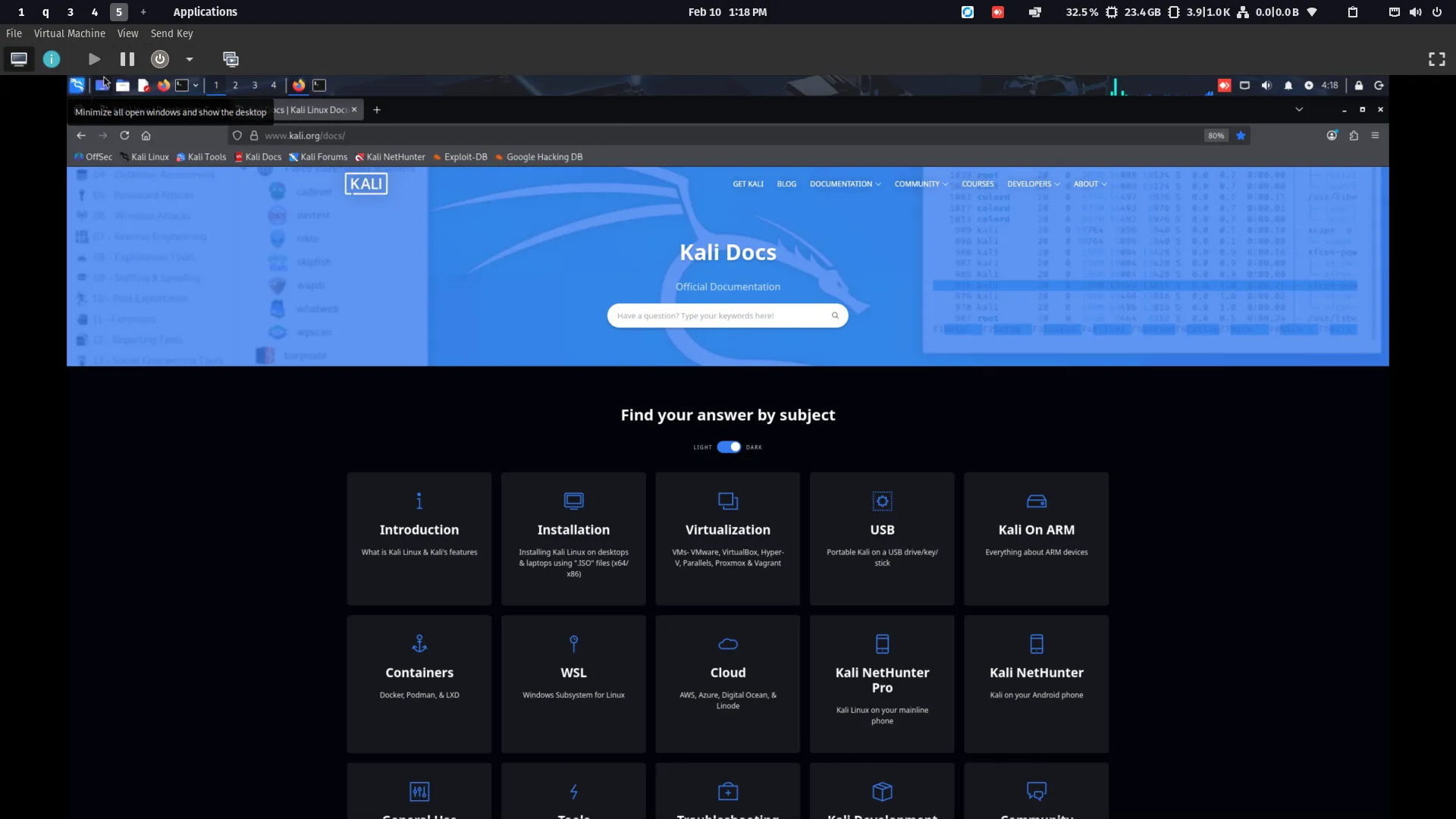
Install Kali Linux on QEMU/KVM with Virtual Machine Manager
Mastering Kali Linux
Your Premium Guide to Setting Up Kali Linux on QEMU/KVM with Virtual Machine Manager.
Introduction
This comprehensive guide is designed for cybersecurity professionals, penetration testers, and ethical hackers looking to establish a powerful and isolated Kali Linux environment using QEMU/KVM, seamlessly managed by Virtual Machine Manager. Unlock the potential of virtualization for your security assessments.
Why QEMU/KVM for Kali Linux?
High Performance
Leverage KVM’s direct CPU instruction execution for minimal overhead and maximum speed.
Open Source & Free
A cost-effective, transparent, and community-driven virtualization solution.
Unmatched Flexibility
Supports a vast array of guest OSs and intricate configuration options.
Robust Isolation
Create secure sandboxed environments to protect your host system during testing.
Pre-Installation Requirements
- Hardware Virtualization Support: CPU must support Intel VT-x or AMD-V. Verify in BIOS/UEFI or via `lscpu | grep ‘Virtualization’`.
- Sufficient Resources: Minimum 4GB RAM, 2 CPU cores, and 40GB disk space recommended for the Kali VM.
- Updated Host System: Ensure your host Linux distribution is fully updated.
Installation Steps
01
Install QEMU, KVM, and Virt-Manager
Update your system and install the essential virtualization packages.
    sudo apt update && sudo apt upgrade -y

    sudo apt install qemu-kvm libvirt-daemon-system libvirt-clients bridge-utils virt-manager -y

    sudo systemctl enable --now libvirtd

    sudo systemctl status libvirtd

    sudo usermod -aG libvirt $(whoami)
Logout/login or reboot to apply user group changes.
02
Download Kali Linux ISO
Obtain the official Kali Linux installer from the official website and verify its integrity.
Download from: kali.org/downloads
sha256sum /path/to/kali-linux-*.iso03
Create VM with Virt-Manager
Launch Virtual Machine Manager and follow the wizard to configure your Kali VM.
- Launch ‘Virtual Machine Manager’.
- Select ‘Local install media’.
- Browse and select your downloaded Kali Linux ISO.
- Allocate Memory (RAM) and CPU cores.
- Create a disk image (e.g., 40 GB).
- Name your VM (e.g., ‘Kali-Linux-VM’) and choose ‘NAT’ networking.
04
Install Kali Linux Inside VM
Proceed through the standard Kali Linux installation prompts within the VM.
- Select language, location, keyboard layout.
- Configure networking.
- Create user account and password.
- Partition disks (e.g., ‘Guided - Use the entire disk’).
- Choose desktop environment and tools.
- Install GRUB boot loader.
- Reboot the VM after completion.
Post-Installation Enhancements
Elevate your Kali Linux VM experience with these recommended enhancements.
-
Install Spice Guest Tools: Enhance host integration, display performance, and clipboard sharing.
sudo apt update && sudo apt install spice-vdagent -y -
Utilize Snapshots: Create VM snapshots before critical operations for quick recovery.
-
Explore Networking: Consider bridge networking for direct local IP access, understanding the security implications.
This setup provides a robust, isolated, and efficient environment for cybersecurity tasks. Always practice responsible testing and maintain the security of both host and guest systems.